One challenge, one countdown
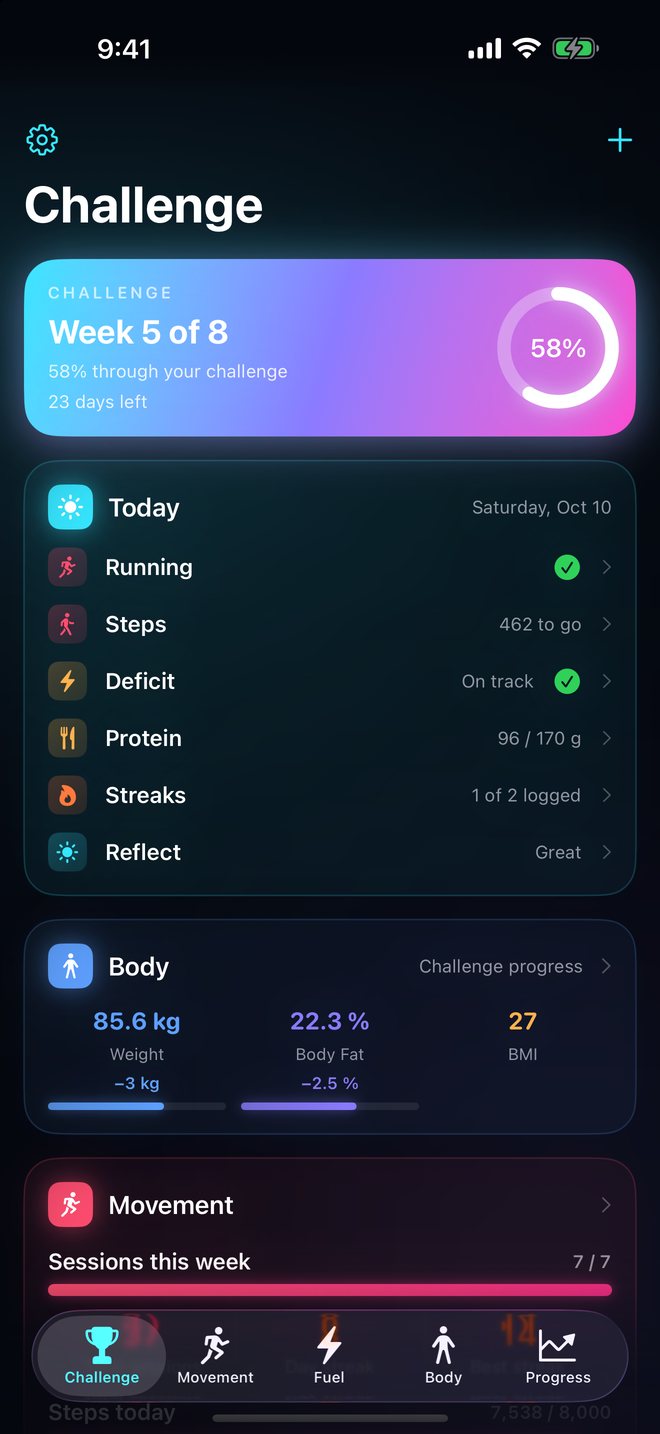
See which week you're in, how far through you are, and a short list of what today still needs.
 Locked In
iPhone · iPad · Apple Watch
Pick a window. Commit to it. Locked In turns the next eight weeks into one focused challenge, with your workouts, calories, body trends and streaks in one place.
Coming soon to the App Store.
Built for a fixed window
Most fitness apps track forever. Locked In tracks a challenge: a start date, a finish line, and a plan you set once. Every day shows what's left to do. Every week ends with a recap. Your Apple Watch and the apps you already use feed it through Apple Health, so there's very little to log.
What it does
See which week you're in, how far through you are, and a short list of what today still needs.
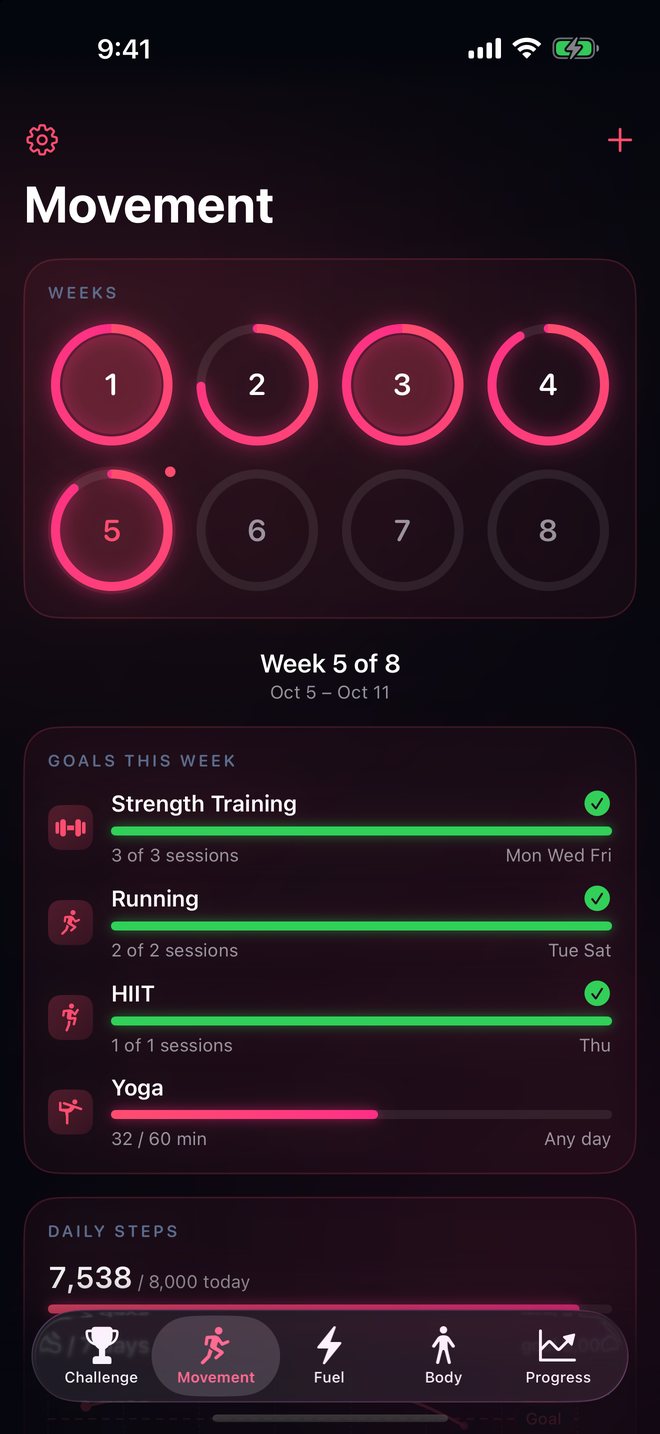
Set sessions or minutes per week for each workout type. Workouts from Apple Watch tick them off automatically.
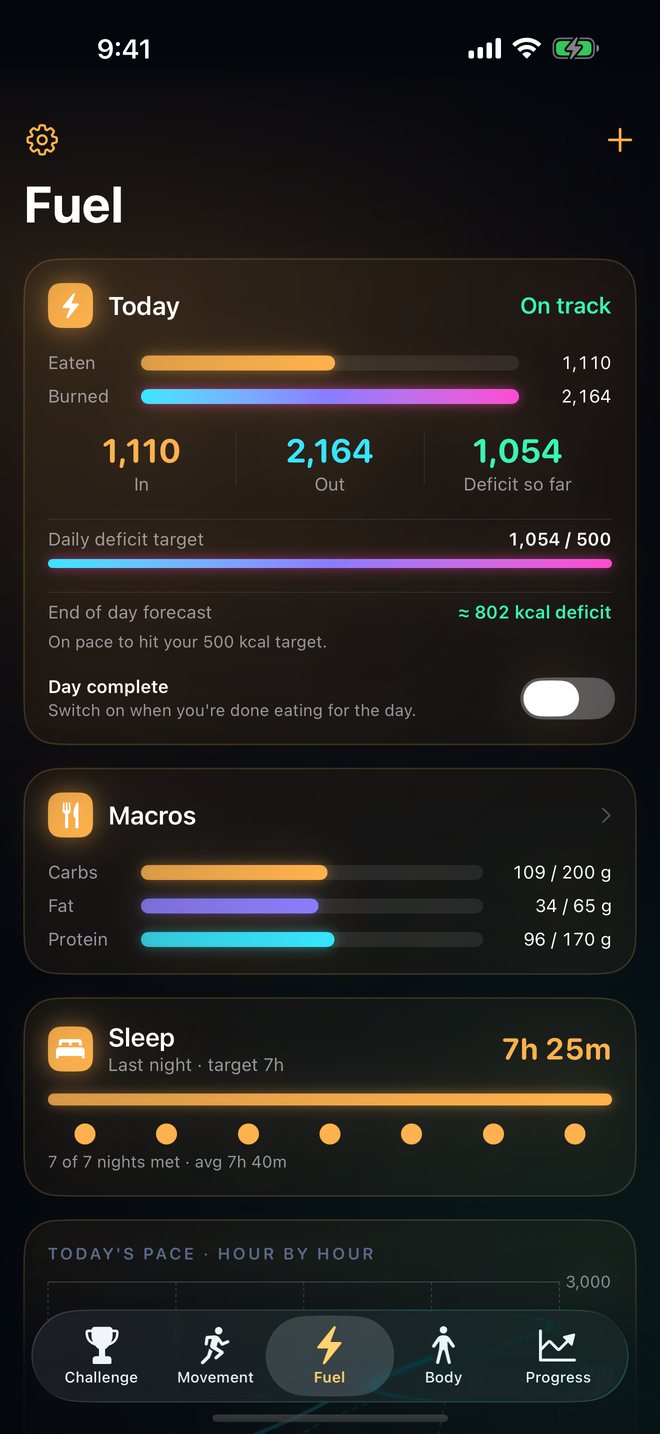
Energy in versus out, macros, an end-of-day forecast and last night's sleep, read from Apple Health.
Weight, body fat and BMI plotted against the ideal pace to your target, so one heavy morning stays in context.
Habit streaks that count up, a guided weekly reflection, and a recap card you can save or share.
Encrypted on your device and kept behind Face ID. They never appear in your Photos library.
Screenshots
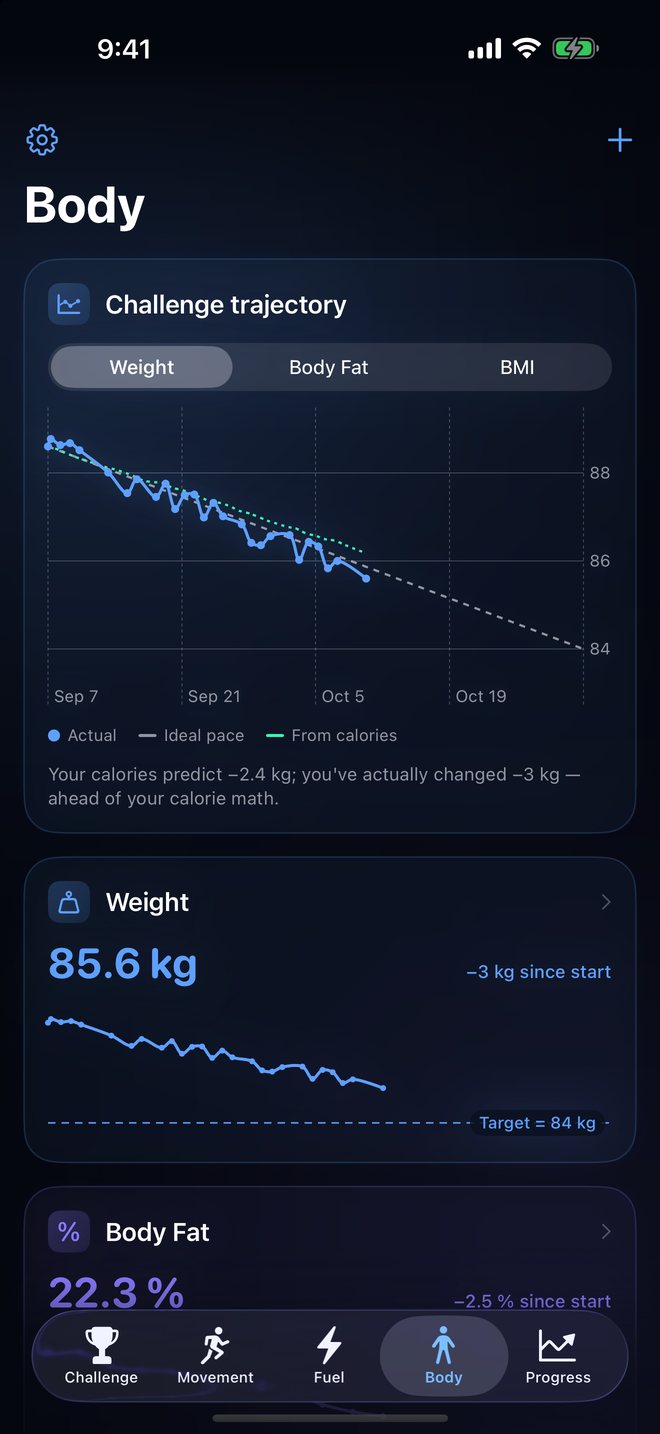
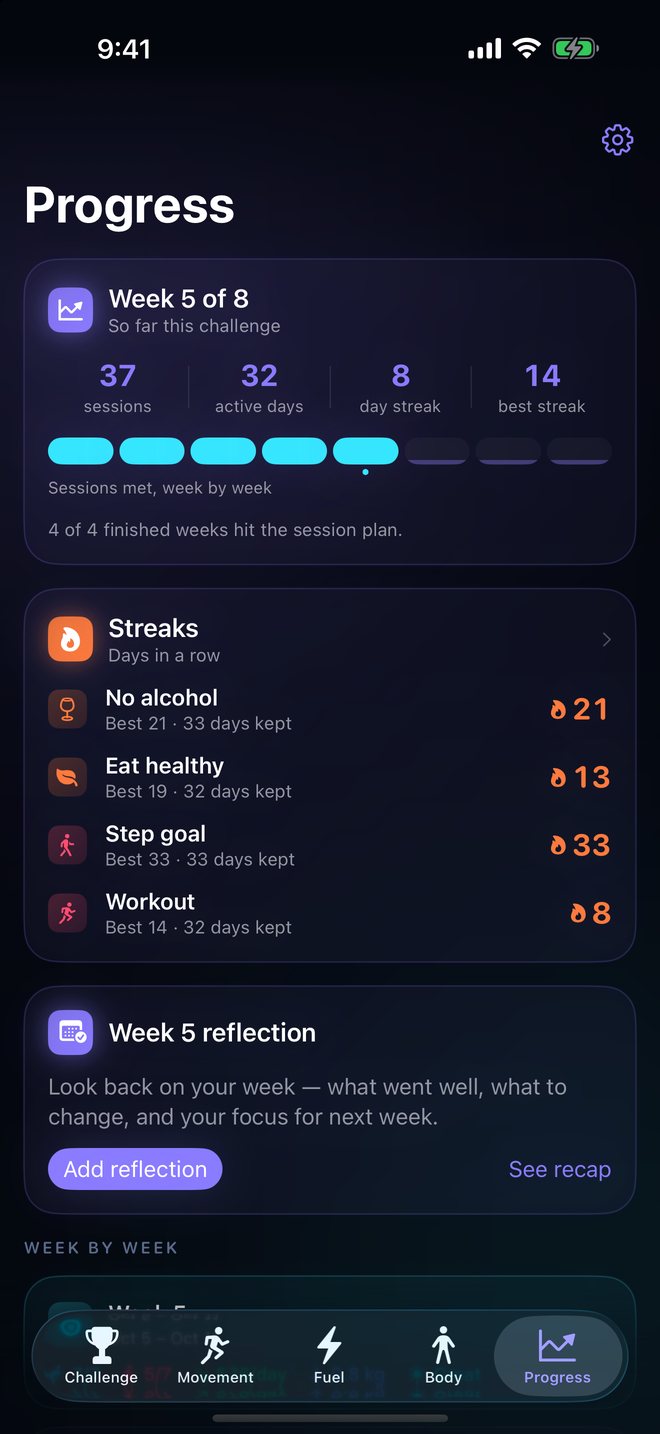
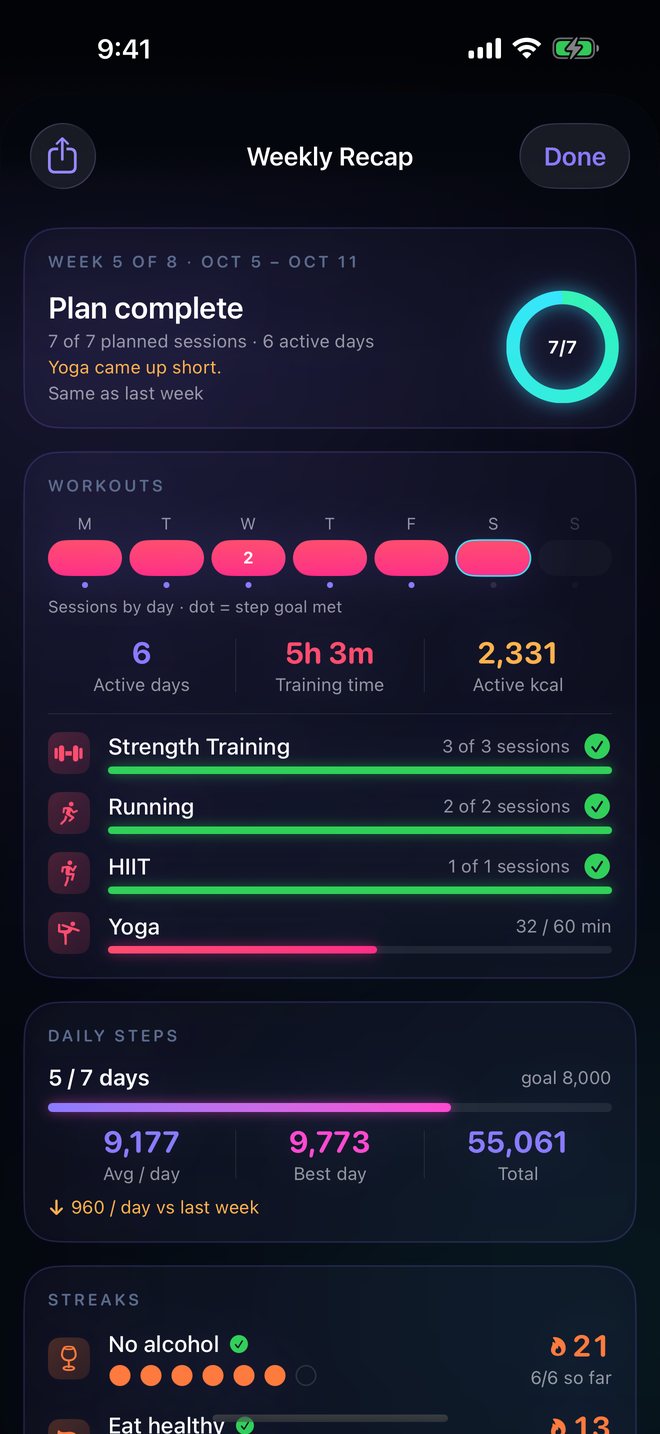
Everywhere you check in
The full app. Your challenge syncs between your devices through your own iCloud account.
Home and Lock Screen widgets for today's energy, macros, objectives and challenge progress.
A watch app and complications show today's energy and where you are in the challenge.
Support
Email admin@mstep.nz with your device model, iOS version, the app version (Settings → About), and a short description of what happened. Screenshots help.
Locked In reads from Apple Health, so it needs permission first. Open the Health app, tap your profile picture, then Apps → Locked In, and turn on the data types you want to use. Apple doesn't tell apps when read access is off, so the app shows empty states rather than an error.
Check that the workout appears in the Health app and that its type matches a workout in your plan (for example, Functional Strength Training and Traditional Strength Training are different types). Plans are judged per challenge week, so a workout counts toward the week it was recorded in.
Apple Health adds up energy from every app that writes it. If two apps record the same workout, for example your Apple Watch and a gym app, the burn is counted twice. In Health, open Active Energy → Data Sources & Access to see which apps are writing it, and stop the duplicate app from saving workouts to Health. Settings → Calorie calibration in Locked In can also adjust burn and intake against your actual weight trend.
Both devices need to be signed in to the same Apple Account with iCloud turned on for Locked In (Settings → your name → iCloud → Saved to iCloud). The sync status is shown in Locked In under Settings → About. Syncing can take a few minutes, especially the first time.
Progress photos are in Settings → Progress Photos, behind Face ID. They are encrypted before they're saved and never added to your Photos library. To see them on another device, iCloud Keychain must be on for both devices, because that's where the encryption key is kept.
Reminders are delivered per device. In Settings → Reminders, turn on "Remind me on this device" on the devices you want them on. It's on by default for iPhone and off for iPad. Also check that notifications are allowed for Locked In in the iOS Settings app.
Settings → Reset Challenge clears your challenge and goals on all your devices and restarts setup. Your Apple Health data is not affected.
Reset your challenge from Settings, then delete the app. To remove the iCloud copy, open the iOS Settings app → your name → iCloud → Manage Account Storage → Locked In. Health data you logged stays in Apple Health until you delete it there.
Privacy
Locked In has no servers, no sign-up, and no analytics or advertising code. Your health data stays in Apple Health. Your challenge syncs only through your own private iCloud account, which the developer can't access. Progress photos are encrypted before they leave the camera.
Locked In is for general fitness and wellness tracking. It is not a medical device and does not provide medical advice.
Read the full Privacy Policy →